what CHECK does
CHECK shows you where your stereo mix falls apart in mono. it analyzes 40 frequency bands in real time using signed Pearson correlation, giving you a full picture of which frequencies are mono-safe and which have phase problems.
most correlation meters show a single number. CHECK shows you a curve across the entire spectrum, so you can see that your bass is safe even if your stereo reverb at 3 kHz is cancelling. it's the difference between "your mono compatibility is 40%" and "your bass is fine but your reverb tail is cancelling above 2 kHz."
CHECK is a pure analysis tool. it passes audio through unchanged with zero latency. no processing, no coloring, no side effects.
what CHECK is not for
- i would not use CHECK to fix phase problems. it analyzes and shows them, it does not correct them.
- i would not expect CHECK to work as a stereo widener or width controller. it measures correlation, it does not process the signal.
- i would not expect CHECK to add or remove anything from the signal. it is a passive analyzer with zero latency and bit-identical passthrough.
quick start
- insert CHECK on your master bus (or any track you want to analyze)
- play your track and watch the correlation curve
- mint means safe, amber means borderline, red means phase problems. the score gives you an overall number.
- if you see dips below 0 in the bass, narrow your stereo processing below that frequency
- click MONO to hear what your audience hears on mono systems
- click SIDE to hear what disappears in mono
controls
four knobs control the analysis display.
SPEED
sets the EMA smoothing time constant for the correlation display. lower values (50 ms) show instant changes. useful for finding transient phase issues. higher values (up to 2000 ms) smooth out the curve to show the average correlation over time. default: 300 ms.
what you hear: this knob does not change the audio. turn left: the curve reacts faster. turn right: a smoother, slower-moving readout.
FOCUS
controls the frequency range shown in the display. three positions:
- LOW: zooms into sub-bass and bass (20 Hz - 500 Hz). use this to check if your low end survives mono.
- FULL: shows the entire spectrum (20 Hz - 20 kHz). the default view.
- HIGH: zooms into the upper range (2 kHz - 20 kHz). use this to check stereo effects, reverbs, and air.
what you hear: passthrough unchanged. you see a different slice of the spectrum on the display.
BASS
controls how much the mono score emphasizes low frequencies. at 0%, all frequency bands count equally. at 100%, the weighting is:
- below 200 Hz: 3x weight
- 200 - 500 Hz: 2x weight
- 500 Hz - 2 kHz: 1x weight
- 2 kHz - 8 kHz: 0.7x weight
- above 8 kHz: 0.3x weight
the default is 70%. this weights the score toward bass because that's where mono collapse actually causes problems: club systems, phone speakers, and Bluetooth devices.
what you hear: passthrough unchanged. the score number weights low frequencies more as you turn right.
ZOOM
smart frequency zoom. turn clockwise and the display automatically focuses on the frequency region with the worst mono compatibility. the target is based on peak hold data, so it stays stable and doesn't jump around.
- 0%: full overview. shows the entire FOCUS range.
- 50%: narrowing toward the problem area.
- 100%: tight focus. about one octave centered on the worst-correlation band.
use the mousewheel over the display to zoom further from wherever ZOOM is pointing. double-click to reset.
what you hear: passthrough unchanged. the display zooms toward the worst-correlation band.
MONO / SIDE
two output monitoring buttons on the right side of the interface.
MONO
collapses the output to mono (L+R sum). click to toggle it on and off. this lets you hear what your audience hears on mono playback systems. the display keeps updating normally.
what you hear: on: L+R sum in both speakers. click again to go back to stereo.
SIDE
solos the side (difference) signal. this is everything that disappears when you sum to mono: the pure stereo content. if you hear important elements here (like your vocal or kick), they'll lose energy in mono.
what you hear: on: side-only signal (what vanishes in mono).
score zones
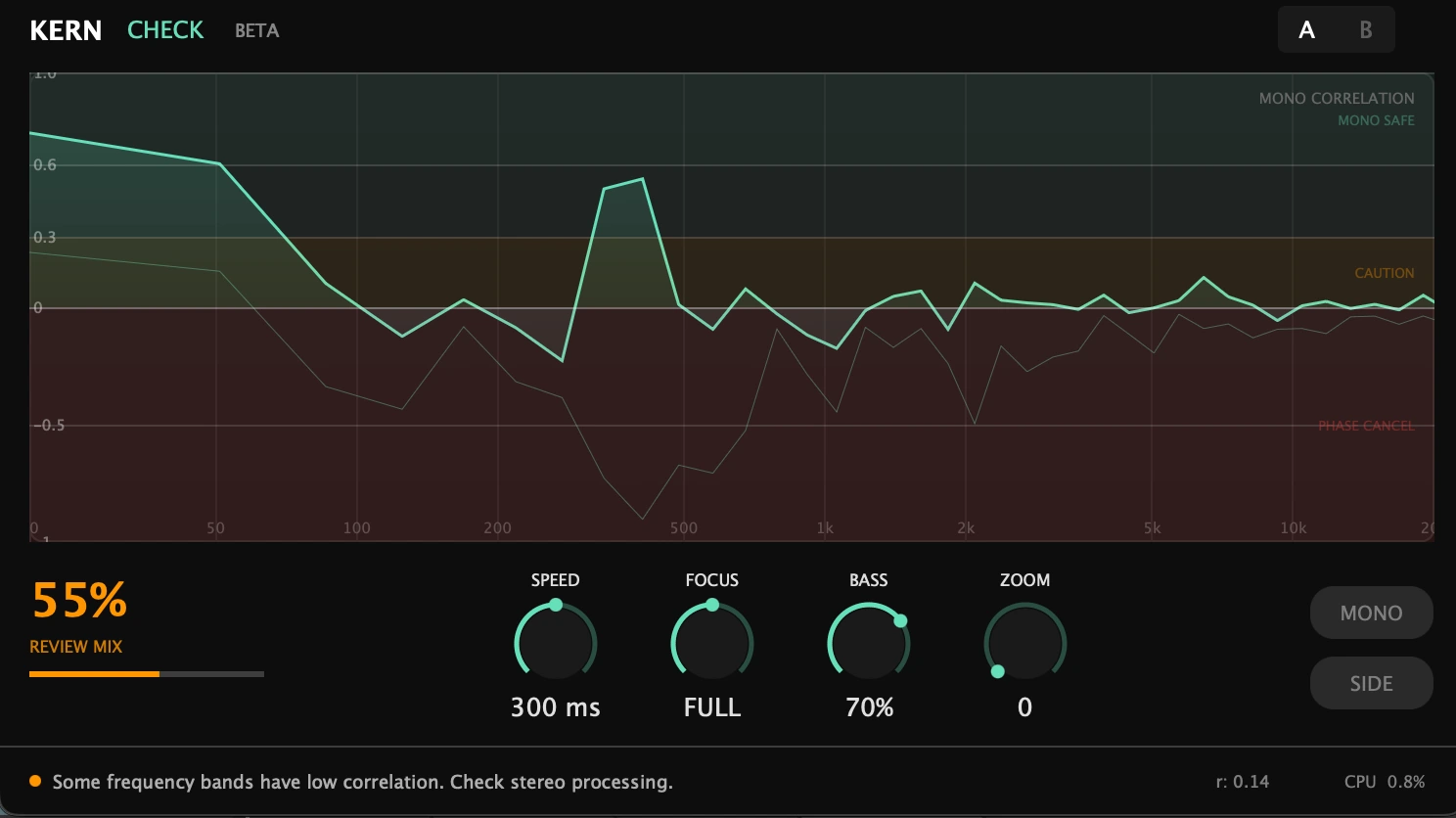
the mono score in the bottom-left shows a bass-weighted compatibility percentage. four zones:
| zone | score | status | what it means |
|---|---|---|---|
| safe | 60% - 100% | MONO SAFE | your mix translates well to mono. no action needed. |
| caution | 30% - 60% | REVIEW MIX | some frequency bands have low correlation. check the curve to see where. |
| warning | 0% - 30% | PHASE ISSUES | significant phase problems. important elements may lose energy in mono. |
| danger | below 0% | PHASE CANCEL | active phase cancellation. audio will be quieter or silent in mono playback. |
the score bar below the percentage fills and changes color to match the zone. a score around 55% means review mix: some bands are safe but others need attention.
a note about the score
a healthy stereo mix typically sits between 60% and 80%. that's the sweet spot: your stereo content is doing its job, and your mix still translates to mono without losing energy.
don't chase 100%. a score of 100% means your left and right channels are identical: no stereo content at all. that's a problem rather than a goal. stereo width, reverb tails, panned elements: these are supposed to be there.
the score is a tool for catching real issues, not a number to optimize. if you're above 60% and the curve looks clean in the bass, you're good. move on and make music.
steady reads and the correlation number (v1.2.5)
the verdict and the score now settle over about two seconds instead of reacting to every split-second frame. a brief dip while a cymbal decays will not flip the headline or pile up "issues" on a mix that is otherwise fine. the live spectral curve still updates in real time, so you can still spot a momentary problem the instant it happens; only the standing verdict is smoothed.
the broadband correlation value (the honest, full-spectrum r, where +1 is perfectly mono and a negative number means cancellation) now sits right next to the verdict. the score is bass-weighted on purpose, since low-end mono matters most, so a wide-but-bass-safe mix can read SAFE while r sits lower. showing both keeps the headline and the number honest with each other: CHECK won't call a mix SAFE when the overall correlation is too low to back it up.
spectral display
the main display shows mono correlation across 40 ERB (Equivalent Rectangular Bandwidth) frequency bands. ERB spacing matches how your ears divide the range: the bands are narrowest at the bottom and widen steadily upward, from about 46 Hz at 200 Hz to 888 Hz at 8 kHz. that puts more of the 40 bands in the low and low-mid range, where a mono collapse does the most damage.
reading the curve
- +1.0: perfectly correlated (identical left and right). the signal is fully mono.
- 0.0: uncorrelated (independent left and right). stereo content but no phase cancellation.
- -1.0: perfectly anti-correlated. the left and right channels cancel completely in mono.
zone backgrounds
the display area is color-coded. green zone at the top (safe). amber in the middle (caution). red at the bottom (phase cancellation). when zone colors are enabled, you can read the display at a glance without checking numbers.
peak hold
the gray line behind the green curve shows the peak (minimum) correlation reached since the last reset. this helps you catch brief phase problems that resolve too quickly to see in real time.
right-click the display to change the hold time: Off, 3 seconds, 10 seconds, or Infinite. infinite hold captures the worst moment across an entire section or song. right-click and choose Reset to clear the peak hold curve.
reading the display
the horizontal axis is frequency (log). the vertical axis is per-band signed Pearson correlation from -1 to +1, not level in dB. default scale is -1 to +1; right-click Scale can zoom to -0.5/+1 or 0/+1. with zone colors on, backgrounds mark MONO SAFE (correlation 0.6 to 1.0), CAUTION (0.3 to 0.6), a warning band (0 to 0.3), and PHASE CANCEL below 0 when the scale includes negatives. the curve color follows the same zones.
right-click menu
right-click the spectral display to access these options:
- Range: set FOCUS to LOW, FULL, or HIGH (syncs with FOCUS knob)
- Scale: set the vertical Y-axis range: -1/+1 (full), -0.5/+1, or 0/+1 (positive only)
- Peak Hold: Off, 3 seconds, 10 seconds, or Infinite
- Zone Colors: toggle the background zone coloring on/off
- Invert Display: flip the Y-axis so cancellation is on top (some measurement conventions prefer this)
- Show Issue Log: toggle the slide-out panel that lists every problem CHECK has caught since the session opened (see below)
- Reset Issue Log: clear the current session's issue log entries
- Reset: clear the peak hold curve and reset all display settings
tips
gain staging
CHECK analyzes in 32-bit float with bit-identical passthrough, so the analyzer path does not clip internally. each band uses signed Pearson correlation, which is unchanged when left and right scale by the same factor. if one channel clips or is gained differently upstream, the curve will reflect that. i keep stereo pairs matched in level for an honest read.
CHECK has no auto comp because it applies no processing. it passes audio through bit-identical with zero latency. there is no makeup gain to adjust, and no noise to raise. CHECK is a pure analyzer.
where it goes in the chain
i place CHECK after stereo processing like width plugins, reverb, or chorus to see how those effects change mono compatibility. i can also place CHECK on the master bus to measure the overall mix, or on individual tracks to catch phase problems at the source before they reach the mix.
CHECK has zero latency and bit-identical passthrough, so i can leave it in the chain without affecting the signal. i use it as a monitoring tool that stays on.
general tips
- check your master bus last. insert CHECK on the final output to see the overall picture.
- check individual tracks too. put CHECK after stereo effects (chorus, phaser, widener) to catch problems at the source.
- bass correlation matters most. keep BASS at 70%+ if your music needs to work in clubs. a bass score below 60% means your low end loses energy in mono.
- use FOCUS LOW when mixing bass. zoom into the low end while you're working on your sub and kick.
- 60-80% is the sweet spot. don't optimize for a higher number. 100% means zero stereo content. if your mix is above 60% and the bass looks clean, you're done. use the score to catch problems, not to chase a higher number.
- side monitoring reveals hidden problems. if you hear your vocal or kick in the SIDE signal, something in your chain is pushing those elements to the sides.
- peak hold catches transients. leave peak hold on and play your full track. the gray line shows the worst-case correlation at each frequency.
- A/B before and after stereo processing. use the A/B buttons to compare correlation before and after adding stereo effects.
troubleshooting
the curve stays at +1.0 everywhere
your input is mono. CHECK needs stereo input to measure correlation. make sure you're feeding it a stereo signal.
the score says PHASE CANCEL but it sounds fine in stereo
phase cancellation only matters in mono. click the MONO button to hear what mono playback actually sounds like. if you hear elements dropping out, it's a real problem.
the curve is jumping around too much
increase the SPEED knob to smooth out the display. 500-1000 ms gives you a stable average that's easier to read.
CPU usage seems high
CHECK uses FFT analysis at 2048 points. typical CPU usage is under 1% at 44.1 kHz. if you see higher numbers, check that you don't have multiple instances running.
the plugin doesn't appear in my DAW
make sure you copied the files to the correct directories. on macOS: AU goes in ~/Library/Audio/Plug-Ins/Components/, VST3 goes in ~/Library/Audio/Plug-Ins/VST3/. restart your DAW after installing.
for the curious
mono theory, session tools, and install paths. skip on a first pass.
issues-found log (v1.2.4)
the issue log records every problem CHECK reports during your session, with timestamps. open it via right-click → Show Issue Log. the panel slides out from the right of the display and keeps a running list of entries like:
- [02:14] phase cancel around 80 Hz. often an out-of-phase kick and bass relationship.
- [04:37] stereo width collapse around 250 Hz. low-mid mono sum loses energy.
when the same kind of problem keeps recurring, similar entries collapse into one row with a count badge so the panel stays scannable over a long session.
use the scroll wheel inside the panel to walk through history. click the × in the panel's top-right corner to close it. the panel is GUI-scale-aware and respects whatever display size you've set the plugin to.
the log is editor-only: it doesn't write to your DAW session file, it doesn't automate, and it resets when you close and reopen the plugin instance. think of it as a session worksheet that disappears when the session ends.
compatibility over time (v1.2.4)
CHECK records your mono compatibility score history during the session (ring buffer in plugins/check/Source/CheckSparkline.h). the on-screen sparkline is still being tuned; the history data is already there for when the UI lands.
when the sparkline ships, it answers a question the score alone cannot: did the mix get worse or better over the last minute? if you tweaked the bass and the score dropped, you can see when. if you added a stereo widener, the trajectory shows whether phase broke.
A/B comparison preservation (v1.2.4)
CHECK's A/B comparison swap now preserves your display preferences. previously, A/B-ing the processed state would also flip your display layout, which made the comparison harder to read. these settings now stay put across A and B states:
- Scale (Y-axis range)
- Invert Display (Y-axis flip)
- Peak Hold (off / 3s / 10s / infinite)
- Range (FOCUS LOW / FULL / HIGH)
- Display Mode (curve / bars, shipped in v1.2.3, audited in v1.2.4)
only the audio-affecting parameters swap on A/B. visual layout is yours.
what is mono compatibility
mono compatibility is how well your stereo mix translates when played back in mono when the left and right channels are summed to a single channel. if your left and right channels have phase differences at certain frequencies, those frequencies lose energy (or disappear entirely) in the sum.
technically, it's measured by the correlation between your left and right channels at each frequency. correlation of +1.0 means the channels are identical at that frequency (perfectly mono-compatible). correlation of 0.0 means independent signals. correlation of -1.0 means they're perfectly out of phase and will cancel completely.
most stereo audio sits somewhere between 0.0 and +1.0. that's normal and fine. the problems start when correlation goes negative. that means active phase cancellation, and your audience will hear a quieter, thinner version of your mix.
why mono compatibility matters
more of your audience hears mono than you think:
- club systems: most club PAs sum to mono below 100-200 Hz. if your bass has phase problems, it disappears on the dancefloor.
- phone speakers: built-in phone speakers are effectively mono. streams, social media, voice messages, all mono.
- Bluetooth speakers: many portable speakers are single-driver mono devices.
- streaming services: some platforms apply mono summing for certain playback scenarios.
- radio: FM radio uses a mono-compatible stereo encoding (pilot tone). phase issues cause artifacts.
the fix is simple: check before you bounce. if CHECK shows problems, you can narrow the stereo width in those frequency ranges, adjust stereo processing, or fix phase issues in your effects chain.
installation
macOS
- download the zip from the product page
- unzip to get the plugin files
- copy
KERN CHECK.componentto~/Library/Audio/Plug-Ins/Components/(AU) - copy
KERN CHECK.vst3to~/Library/Audio/Plug-Ins/VST3/(VST3) - copy
KERN CHECK.aaxpluginto/Library/Application Support/Avid/Audio/Plug-Ins/(AAX) - restart your DAW
CHECK is a free utility. no license key needed. just install and use.
windows
- download the zip from the product page
- unzip to get the plugin files
- copy
KERN CHECK.vst3toC:\Program Files\Common Files\VST3\ - copy
KERN CHECK.aaxplugintoC:\Program Files\Common Files\Avid\Audio\Plug-Ins\ - restart your DAW
VST3 works fully on Windows. Standalone is included but not yet code-signed (coming soon).
version history
v1.3.0 (september 25, 2026)
now available as aax for pro tools on macos and windows. the waiting for audio message now clears as soon as check is analysing your signal. hold shift while using the mouse wheel on a knob for fine steps.
KERN CHECK / version 1.3.0 / built by KERN Audio